YouTube thumbnail maker
Start from a description, reference image, or a moment in your project. Ask ChatCut to generate cover artwork, then review it against the subject and promise of your video.
Opens ChatCut in a new tab. Sign in and add your video and references there. Agent requests and generation use credits; ChatCut image models require Pro.
- Text or image references
- Specify a wide composition
- Review and revise the artwork
Trusted by 400,000+ creators
How it works
How to use the YouTube thumbnail maker
- 01
Describe the cover
Write the subject and composition on this page, open ChatCut, and sign in free. Start from words or add a reference showing your actual content.
- 02
Add context and request the image
Use + for a reference or Selection Mode to add project context with @. Ask the Agent for the aspect ratio, output size, quality, image count, and background you need.
- 03
Review the artwork and revise
If a confirmation appears, review the request and estimate, then select Allow. Follow progress in My Assets and reference the result for revisions.
Why ChatCut
Why use a YouTube thumbnail maker in ChatCut
-
Start with a written brief
Describe the subject, composition, aspect ratio, and visual style. The AI image generator can start from text alone, so you do not need an uploaded image for every concept.
-
Ground the cover in your video
Use @ to reference a clip, time, or existing project frame. Explain which details should match what the viewer will actually watch.
-
Attach a visual reference
Attach references through + when a person, product, logo, or layout matters. The image-generation instructions explain how to prepare the request.
-
Specify the composition
Ask for a wide image, a focal point, and headline space. Specify the aspect ratio, output size, quality, and background treatment.
-
Request a small set of alternatives
ChatCut image models accept 1 to 10 images per request. Each has a separate job, asset, and charge, so give each alternative a purpose.
-
Revise the latest result
Reference the generated image and name the change you want while stating what must stay fixed. Results appear as new assets in My Assets, without overwriting the reference images.
Tips
Get more clicks from a YouTube thumbnail maker
Choose one promise from the video, then make its subject recognizable at a small viewing size.
-
Choose a promise to show
Write the central question or result, then select a subject that represents it so the thumbnail stays faithful to the video.
-
Separate subject from background
Request a clear silhouette, contrast, and space for the headline so the main detail survives a small preview.
-
Compare at viewing size
Compare small previews with one deliberate difference to see which crop or background keeps the subject easiest to recognize.
Use cases
YouTube thumbnail maker composition ideas
-
A cover that matches your presenter
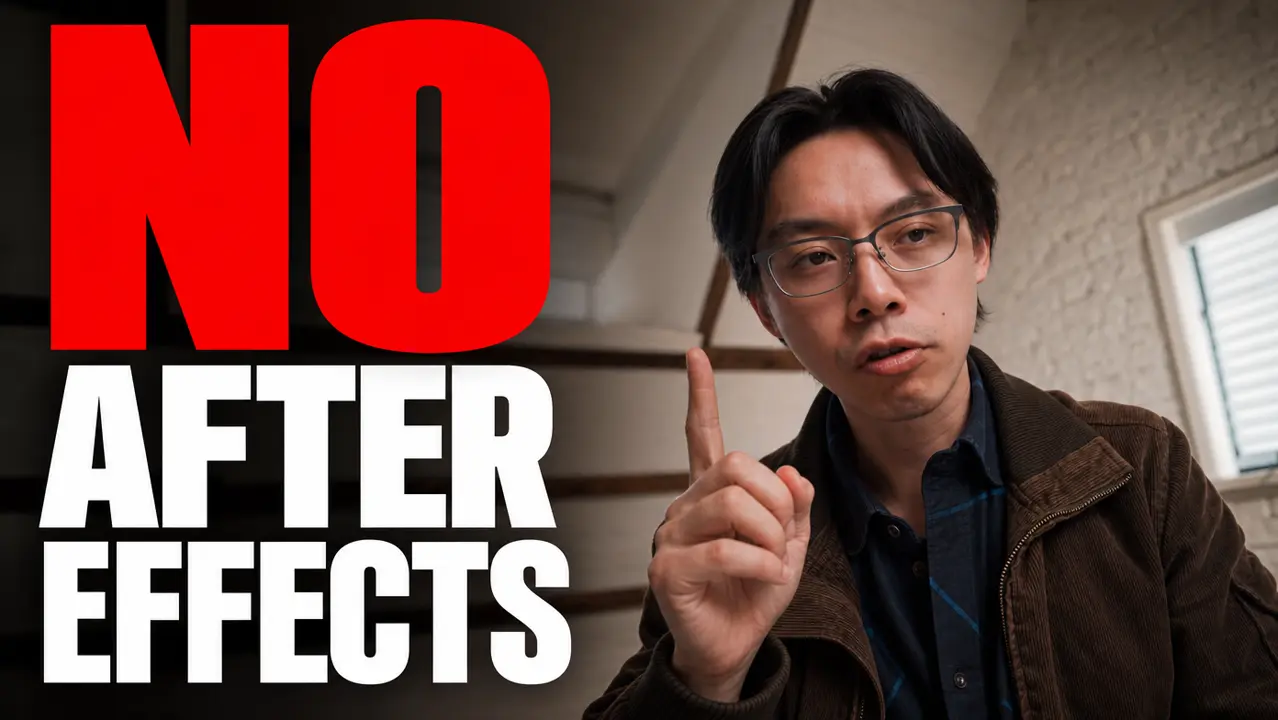
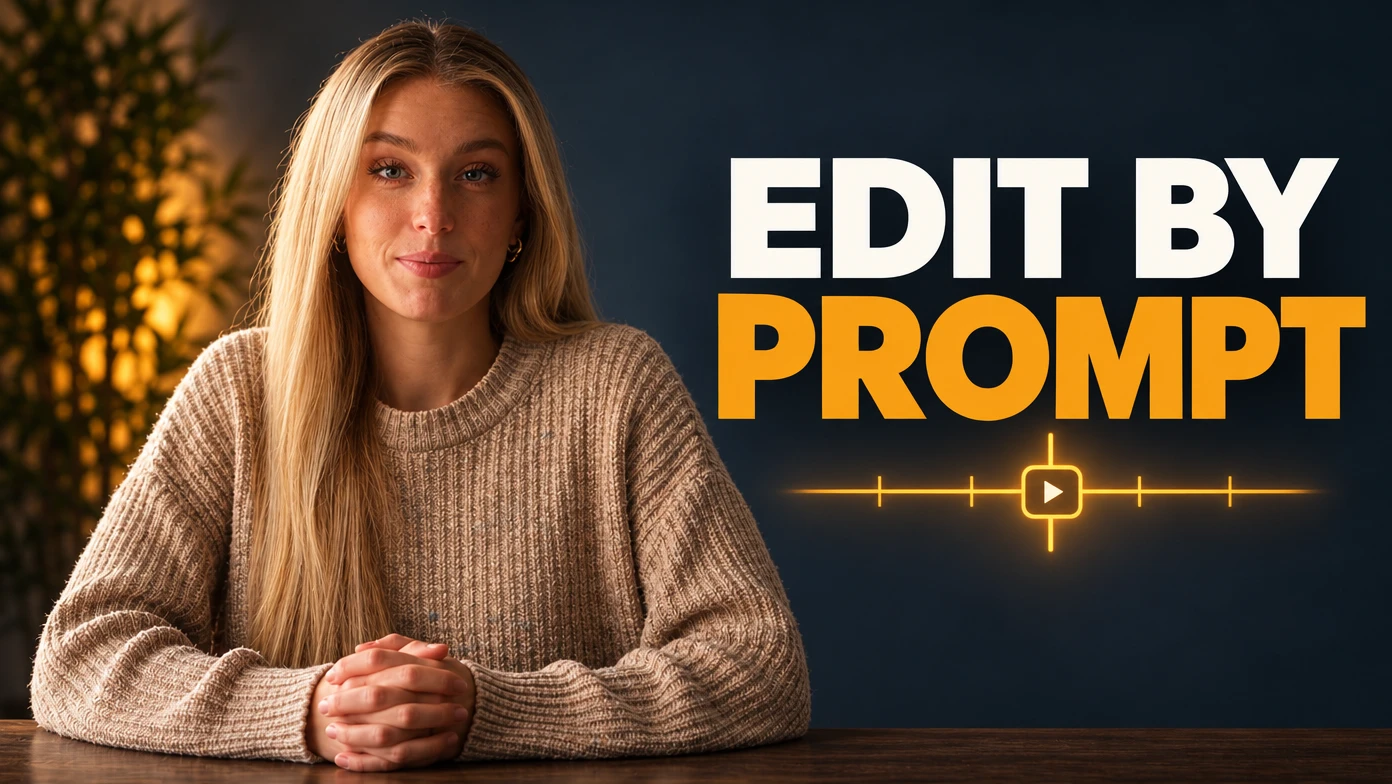
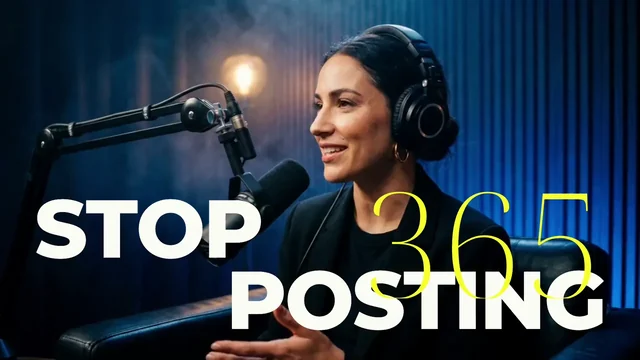
Use a frame from the video to keep the presenter and setting recognizable. The “EDIT BY PROMPT” cover pairs the speaker with a short headline and a simple timeline graphic.
-
A cover made alongside the edit
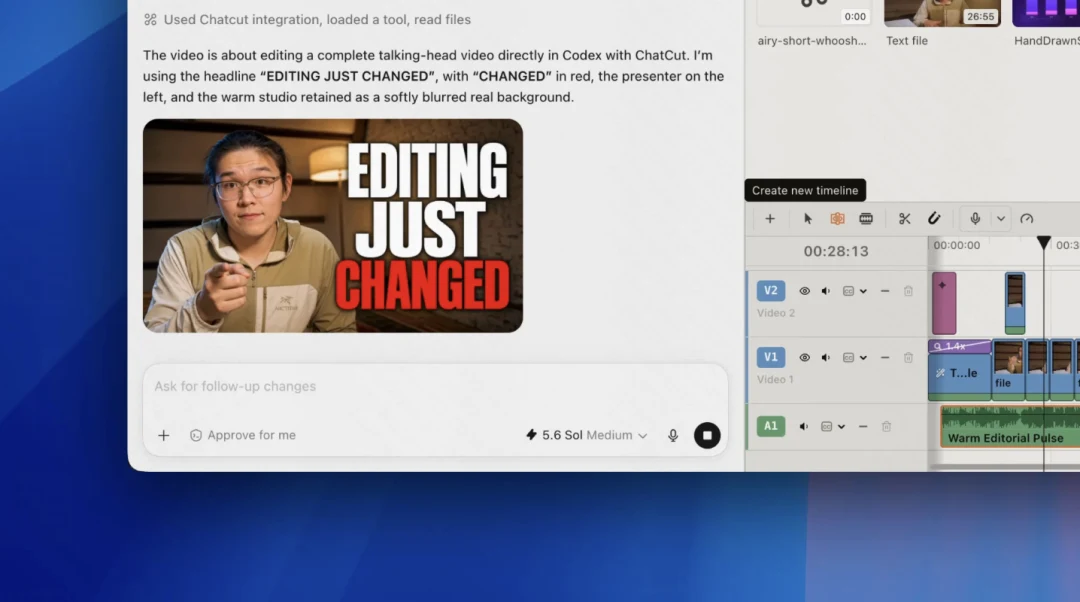
Create the cover while the footage and story are still in the same project. Here, “EDITING JUST CHANGED” keeps the presenter prominent and uses one accent color to emphasize the final word.
-
A bold travel or design concept
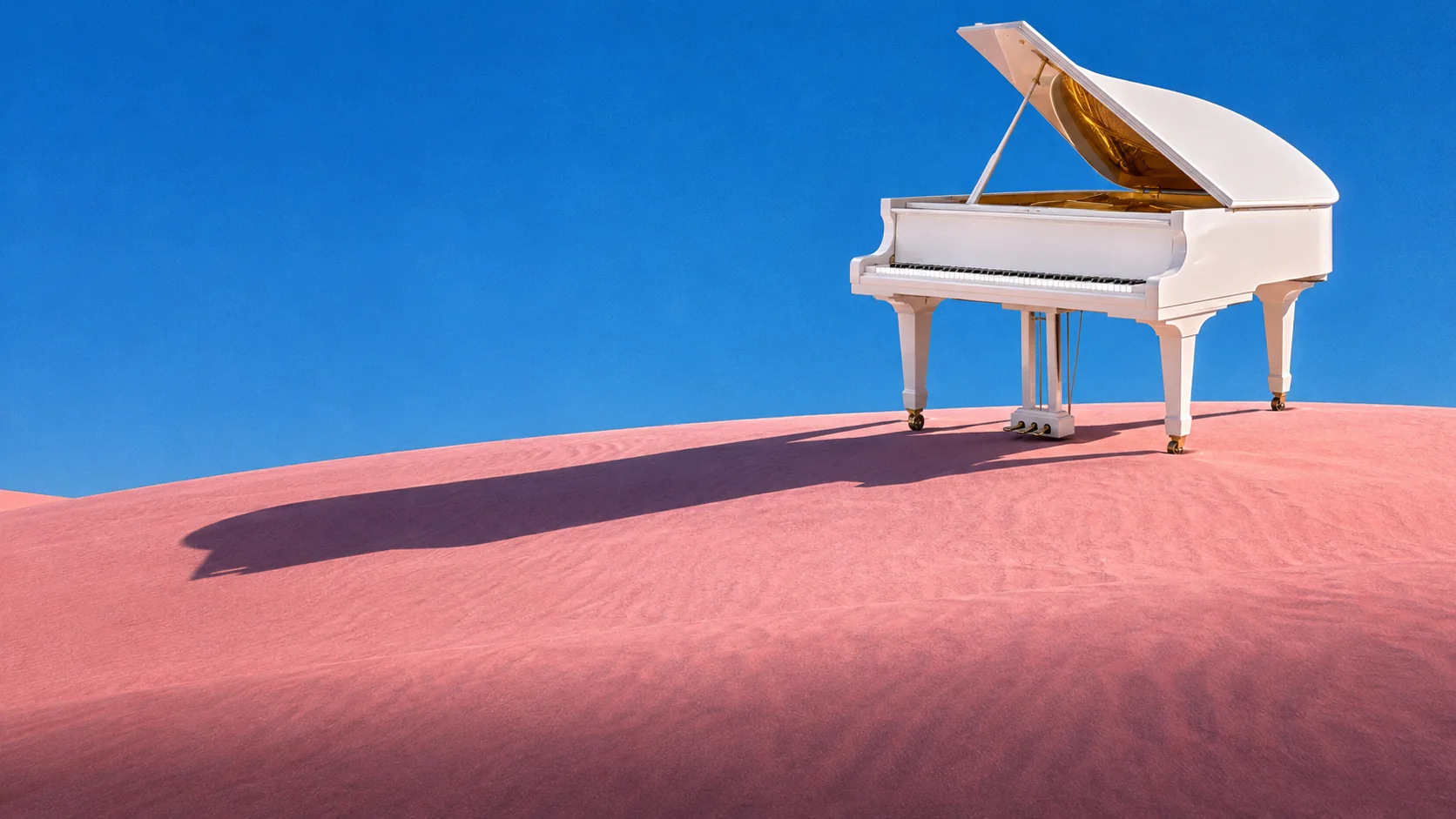
Give a travel or design cover one clear focal point and a simple color palette. This GPT Image 2.6 composition places a white piano against pink dunes and a blue sky.
Keep editing
Make the opening deliver on the cover
Check that the video’s opening delivers on the cover. Show the subject early, trim a slow start, and add captions when the explanation depends on speech.
- Conversational editing
- Text-based editing
- Auto-captions
- Motion graphics
- AI voiceover
- Generate clips
- Noise removal
- Multi-track timeline
-
You Can Now Edit Videos with Grok Bot
Edit with Grok Bot -
How to Make 3× the Content With AI (No Editing Experience)
Turn long videos into shorts -
I Turned One Product Photo Into a Full Ad With ChatGPT
Product ads skill -
How to Create Insane Motion Graphics with Astra 6
AI motion graphics
Skills
Hundreds of skills for any video
100+ Skills. No experience needed. Start in one click.


FAQ
YouTube thumbnail maker FAQ
Is the thumbnail workflow free?
ChatCut image models require Pro and credits. Agent messages also use credits, and each generated image has its own charge. Uploads and manual editing are free of credit charges; check credits policy after generation.
Do I have to upload a video?
No. Start from text alone, attach an image through +, or reference a project clip, time, or frame with @. Explain which details should stay recognizable.
Can I choose the output size and shape?
Specify aspect ratio, output size, and quality in the request. A 16:9 composition suits a wide cover; check the result against your destination’s upload requirements.
Can I match a person, product, or existing style?
Supply clear references and explain what each controls. The reference guide covers preparation. Review faces, products, and lettering rather than assuming every detail will match.
Can I generate several thumbnail ideas at once?
ChatCut image models accept 1 to 10 images per request and default to one. Each has its own job, asset, and charge. Compare distinct compositions before ordering more.
How do I get the finished artwork?
Finished images appear in My Assets. Use Download when available for the card’s type and state; see the asset guide. You can also drag images onto video tracks.
Is this the same as exporting a still frame?
No. This workflow generates artwork. Saving a composed timeline frame as PNG is a separate Desktop capability; the web Export panel has no still-image option. See Desktop frame export for an unchanged frame.
Can I animate the cover afterward?
Yes. Use the artwork as a starting frame for image to video and describe its motion. Video generation separately requires Pro and credits, so review the estimate first.
Related
Tools to pair with a YouTube thumbnail maker
All AI apps
Edit video
Record
Captions, text & translation
AI video & images
- AI animation generator
- AI avatar generator
- AI character swap
- AI Christmas photo
- AI clothes changer
- AI commercial generator
- AI dance generator
- AI headshot generator
- AI influencer generator
- AI movie maker
- AI photoshoot
- AI podcast generator
- AI poster generator
- AI product photography
- AI rap generator
- AI tattoo generator
- AI try-on video
- AI UGC video generator
- AI virtual staging
- App promo video maker
- Audio visualizer
- Billboard mockup video
- Blur background photo
- Change photo background
- Christmas card maker
- Claymation video maker
- Colorize photo
- Face swap video
- Hair color changer
- Hairstyle try on
- Image to video
- Lip sync
- Logo animation
- Motion control AI
- Personalized Santa video
- Photo restoration
- Pixel art animation
- Remove object from video
- Remove people from photos
- Remove text from video
- Replace video background
- Script to video AI
- Sharpen image
- Text to video
- Thumbnail maker
- Training video maker
- Unblur image
- Unboxing video maker
- Video background remover
- Video background remover
- Video effects
- Video summarizer
- Vocal remover
- Whiteboard animation maker
All free tools
Convert & compress
Edit video
Audio & voice